
Table of Contents
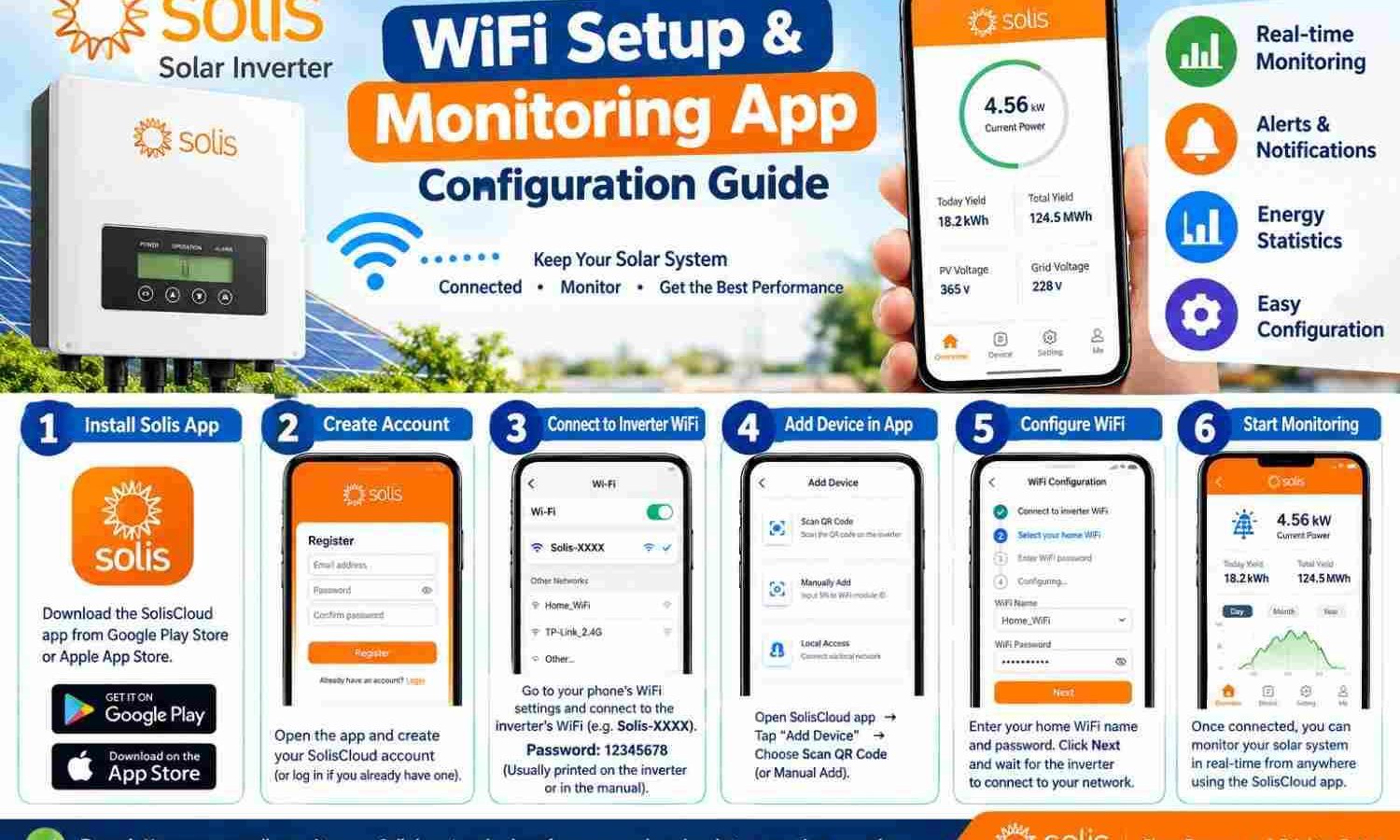
Stop wasting money by leaving your solar power system unmonitored. Get your system online now with our solis inverter wifi setup and monitoring app configuration guide. This easy setup lets you track your real-time energy savings on your phone.
Many business owners install solar panels and assume everything runs fine. However, a loose wire or a dirty panel can cut your power production in half. A proper solis inverter wifi setup and monitoring app configuration ensures you never lose money. Let us get your system connected today.
Why Solis Inverter WiFi Setup and Monitoring App Configuration Matters
Running a business requires you to keep costs low. Power bills are often your largest monthly cost. Solar panels lower these costs, but only if they work at their best. Energy reports from Statista show that digital monitoring saves owners up to fifteen percent more on bills. It does this by finding faults early.
A quick solis inverter wifi setup and monitoring app configuration helps you spot production drops fast. You can see how much power your panels make at noon compared to the morning. If you see a drop, you can fix it before it hurts your profits. If you own other solar gear, our Amazing Knox Solar Inverter Settings for Tubular Battery Guide can help you get better output.
To help you understand your options, look at this comparison table. It shows the differences between Solis data stick types.
| Connection Type | Signal Range | Best Use Case | Setup Complexity |
|---|---|---|---|
| WiFi Stick | Medium (Up to 15 meters) | Small businesses and offices | Very Simple |
| LAN Stick | Long (Up to 100 meters) | Large metal warehouses | Moderate |
| GPRS/4G Stick | Cellular Network Coverage | Remote farm sites or pump stations | Extremely Simple |
Step-by-Step Solis Inverter WiFi Setup and Monitoring App Configuration
You do not need to be an IT expert to connect your solar system to the internet. We broke the process down into small, simple steps. You can finish this in under twenty minutes.
Step 1: Preparing Your Hardware and Smartphone
Before you start the solis inverter wifi setup and monitoring app configuration, check your signal. Stand next to your inverter and look at your phone. If you see only one signal bar, you may need a wifi booster.
Next, find the silver sticker on your Solis wifi stick. This sticker lists the serial number. Write this number down or take a quick photo of it. You will need it later. Now, plug the stick into the bottom port of your inverter. Tighten the plastic nut with your fingers.
Step 2: Connecting to the Solis Datalogger Hotspot
Once plugged in, the wifi stick will turn on. It will start to send out its own local network. Open the settings on your phone and look for a network named “AP_” followed by your stick’s serial number.
Tap this network to connect to it. Your phone might say there is no internet access. This is normal. Connect anyway. If your phone asks for a password, type “123456789”.
Step 3: Configuring the Local Network Settings
This step is the main part of your solis inverter wifi setup and monitoring app configuration journey. Open a web browser on your phone. Type “10.10.100.254” into the address bar and tap search. A login screen will load.
Type “admin” for the username and “admin” for the password. These are the default login details. Once inside, tap the “WLAN Setting” button. The page will scan for local wifi networks.
Find your business wifi name in the list and select it. Type your wifi password carefully. Double-check for capital letters. Tap “Save” to apply the settings. The stick will reboot and connect to your router.
Step 4: Linking to the Solis Cloud App
Now that the stick is online, you must link it to your account. Download the “SolisCloud” app from your app store. Open the app and tap “Register” to create a free account.
Log in and tap the plus (+) icon to add your solar plant. Enter your address, system size, and electricity rate. Next, use your phone camera to scan the barcode on your wifi stick. Your data will now flow to the cloud.
Troubleshooting Your Solis Inverter WiFi Setup and Monitoring App Configuration
Do not worry if your first solis inverter wifi setup and monitoring app configuration try fails. Network issues happen often, but they are easy to fix. Let us look at the most common issues.
- The “AP_” Network Does Not Show Up: If you cannot find the hotspot, reset the stick. Hold the tiny reset button on the side for ten seconds.
- The Power Light is Red: A red light means the stick has no power. Turn off the inverter, unplug the stick, plug it back in tightly, and turn the inverter on again.
- The Link Light is Blinking: A blinking light means the stick cannot reach your router. Move your router closer or clear any metal obstacles.
Sometimes, office routers block new devices for security. If your network uses a 5 GHz band, switch your router to broadcast a 2.4 GHz signal. Solis wifi sticks only work on 2.4 GHz because it travels better through walls.
Maximizing Solar Efficiency for Your Business
Once you finish the solis inverter wifi setup and monitoring app configuration, use the data to make smart choices. Watch your peak production hours. If you make the most power midday, run your heavy machines then.
Remember that dirty panels also lower your production. Keep your physical panels clean to match your digital settings. Learn the safest way to clean your gear by reading our guide on How to Clean Solar Panels at Home Without Scratching Glass: Amazing Guide.
Clean panels and smart cloud monitoring give you full control over your bills. You will see your savings grow and learn the best times to use your solar power.
Frequently Asked Questions
Does the Solis Cloud app cost money to use?
No, the app is free for all owners. You can monitor your data on iOS or Android without any monthly fees.
What should I do if I change my business WiFi password?
Your inverter will go offline if you change your password. You must repeat the solis inverter wifi setup and monitoring app configuration. Connect to the “AP_” network, go to 10.10.100.254, and enter the new password.
How long does it take for data to update in the Solis app?
The app updates its data every five minutes. This small delay saves battery and network data while giving you good trends.
Can I monitor multiple Solis inverters on a single app account?
Yes, you can add multiple inverters to one account. This is great for businesses with solar arrays on different buildings.
Last updated: September 20, 2026
Written by Bilawal Qureshi (Software Developer and AI Expert).
Have questions or ready to get started? Get in touch with our team or chat with us on WhatsApp.