
Table of Contents
You can build a professional business website in under ten minutes without hiring an expensive developer. This guide shows you exactly how to install wordpress on cpanel hpanel step by step to get your site online today.
You do not need any coding skills to follow along. Most modern web hosting providers give you simple, automated tools. These tools do the heavy lifting for you. Let us look at how you can launch your website quickly and safely.
Why Learning How to Install WordPress on cPanel hPanel Step by Step Matters
WordPress runs over forty percent of all websites on the internet. According to industry data on Statista, it is the most popular content management system worldwide. Most small businesses choose it because it is flexible and easy to use.
When you buy hosting, you usually get a dashboard to manage your files. The two most common dashboards are cPanel and hPanel. Learning how to manage these panels yourself saves you money and gives you full control over your online business.
| Feature | cPanel Dashboard | hPanel Dashboard |
|---|---|---|
| Primary Web Host | Multiple hosting brands | Hostinger exclusive |
| User Interface | Classic, text-heavy layout | Modern, clean layout |
| One-Click Installer | Softaculous App Installer | Custom Auto Installer |
Both dashboards let you set up WordPress in just a few clicks. You do not need to create databases manually. The automated installers handle everything behind the scenes.
Pre-Installation Checklist: What You Need First
Before starting, make sure you have your hosting account ready. You will need your login details handy. Your web host sent these to you via email when you signed up.
You also need a domain name linked to your account. Your domain name is your online address. Make sure your domain is active before you begin the setup process.
Finally, ensure you have a reliable internet connection. If your home network is slow or drops frequently, it can cause errors during installation. If you face local connection issues, read our guide on how to change PTCL router WiFi password to secure and stabilize your home network.
How to Install WordPress on cPanel hPanel Step by Step: The cPanel Method
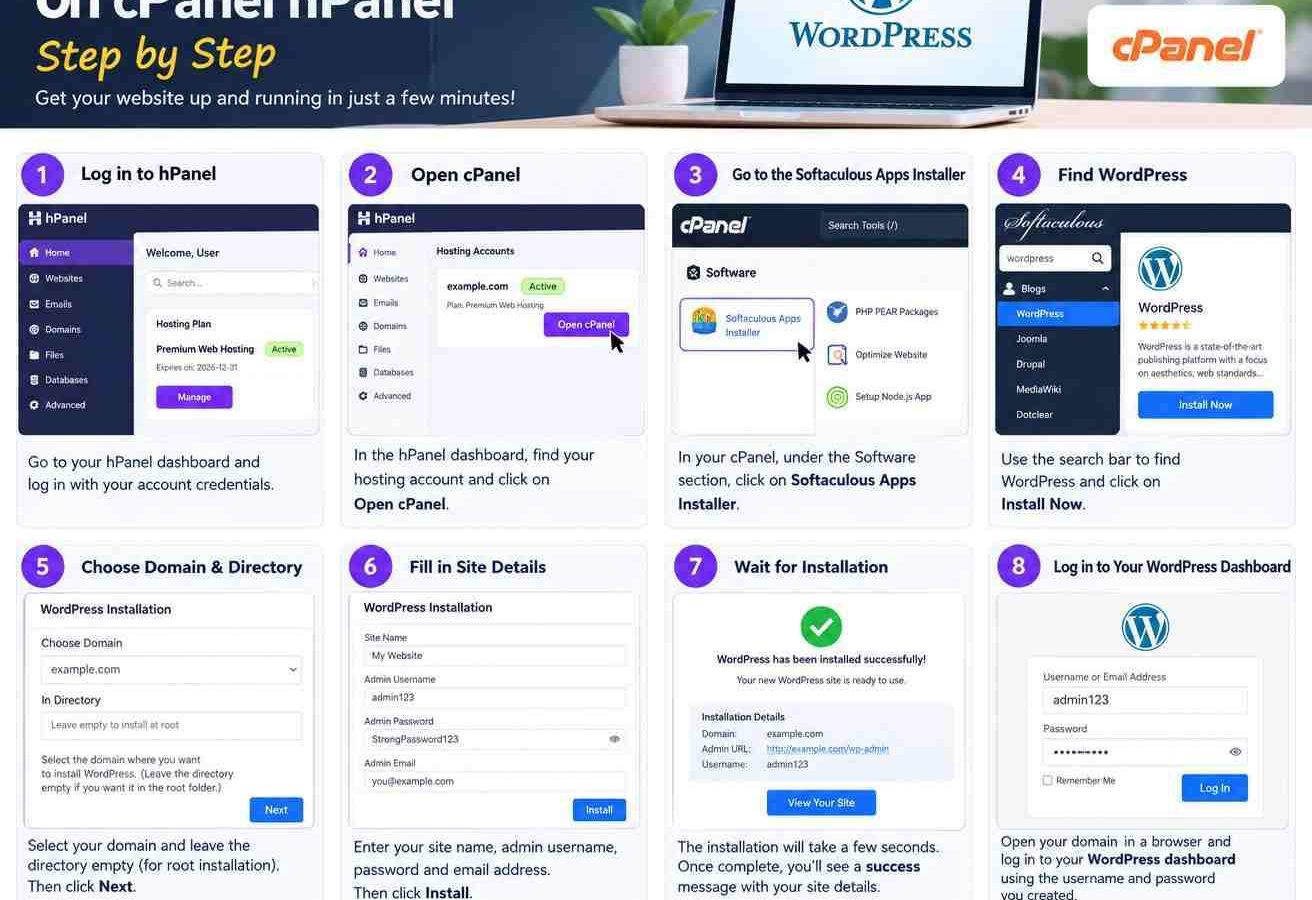
Let us begin with cPanel. This is the industry standard panel used by thousands of web hosts. It uses an app called Softaculous to install software.
Step 1: Log In to Your cPanel Dashboard
Open your web browser. Type your domain name followed by “/cpanel” into the address bar. Enter your username and password. Click the login button to enter your main dashboard.
Step 2: Find the Softaculous Apps Installer
Once inside, scroll down the page. Look for the “Software” section. Click on the “Softaculous Apps Installer” icon. This opens a new screen with many web applications.
Step 3: Select WordPress
You will see the WordPress logo right at the top. Click the blue “Install” button. This action opens the installation settings page.
Step 4: Fill In Your Website Details
First, choose your installation URL. Select “https://” to keep your site safe. Choose your domain name from the dropdown list. Leave the “In Directory” field completely empty.
Next, enter your website name and description. Do not worry about getting these perfect right now. You can change them later inside your dashboard.
Step 5: Create Your Admin Account
Create a strong admin username and password. Do not use “admin” as your username. Hackers target that name first. Enter your active email address so you can reset your password if you ever forget it.
Step 6: Complete the Installation
Scroll to the very bottom of the page. Click the “Install” button. The installation process takes about one minute. Do not close your browser tab until the progress bar reaches one hundred percent.
When the process completes, you will see a success page. This page contains your login URL. It usually looks like yourdomain.com/wp-admin. Click this link to open your new website dashboard.
That covers the first half of **how to install wordpress on cpanel hpanel step by step**. Now let us look at how to do this on hPanel.
How to Install WordPress on cPanel hPanel Step by Step: The hPanel Method
Hostinger developed hPanel as a modern alternative to cPanel. It is very fast and easy to navigate. The setup process is slightly different but still highly intuitive.
Step 1: Log In to Your Hosting Account
Go to your host’s website and log in to your account. This opens your main dashboard. Click on the “Websites” tab in the top menu.
Step 2: Access Your Site Manager
Find the domain name you want to use. Click the “Manage” button next to it. This takes you directly into your hPanel control center.
Step 3: Open the Auto Installer
Look at the left sidebar menu. Click on the “Website” option. Select “Auto Installer” from the dropdown menu. You will see several options on the screen.
Step 4: Select WordPress and Set Up Credentials
Click the “Select” button under the WordPress logo. A pop-up form will appear. Enter your website title. Type in your administrator email, username, and a strong password.
Click the “Next” button. Choose your preferred language. We recommend leaving the database settings on the default options. Click the “Install” button to finish.
Your dashboard will refresh once the setup is complete. You can now access your site admin area directly from your hPanel dashboard. You have officially mastered **how to install wordpress on cpanel hpanel step by step**.
Essential Post-Installation Tasks
Once you complete this guide on **how to install wordpress on cpanel hpanel step by step**, you must perform a few quick tasks. These tasks secure your site and make it load faster.
- Activate SSL: An SSL certificate encrypts the connection between your server and your visitors. It shows a secure padlock icon in browser address bars. You can activate this for free inside your control panel.
- Update Your Permalinks: Go to “Settings” and then “Permalinks” in your admin dashboard. Select the “Post name” option. This makes your web links clean and easy for search engines to read.
- Delete Sample Content: WordPress comes with a default post called “Hello World” and a sample page. Delete these placeholders immediately to keep your site clean.
- Install a Security Plugin: Use a free plugin like Wordfence. It protects your site from malicious traffic and login attempts.
If you run an online shop or business, you will also need secure payment systems. For business owners in South Asia, getting international payment gateways can be tricky. You can check our guide on how to create verified PayPal account in Pakistan legal way to accept international payments securely.
Additionally, keeping your business phone line active is critical for customer support. If you need to switch to a more reliable mobile carrier, read our article on how to port SIM from Jazz to Zong in Pakistan to ensure your business communication remains uninterrupted.
Troubleshooting Common Installation Errors
Even if you know **how to install wordpress on cpanel hpanel step by step**, you might run into small technical glitches. Here is how to solve them quickly.
If you see an “Error Establishing a Database Connection” message, your website cannot talk to your database. This is rare when using auto-installers. If it happens, delete the current installation from your panel and run the installer again.
If the installer gets stuck at ninety-nine percent, do not panic. Server load can sometimes delay the process. Wait five minutes, then open your domain in a new tab. Often, the installation is already complete, and you can log in without issues.
Lastly, if you see a “Not Secure” warning on your website, your SSL certificate is not active yet. Log in to cPanel or hPanel and check your SSL settings. It can take up to thirty minutes for a new SSL certificate to apply globally.
Frequently Asked Questions
Do I need coding skills to follow this guide on how to install wordpress on cpanel hpanel step by step?
No, you do not need any coding skills. The one-click installers on cPanel and hPanel handle all technical tasks automatically. You only need to fill in basic details like your site name and admin password.
Can I change my administrator username later?
You cannot change your admin username directly within the WordPress settings page. However, you can create a new administrator user with your preferred name, log in to that account, and delete the old one safely.
Why does my site still say “Not Secure” after installation?
This happens because your SSL certificate is either not installed or still active in the background. Go to your web hosting dashboard and make sure the free SSL certificate is activated for your domain name.
How do I log in to my website once it is installed?
You can log in by adding “/wp-admin” to the end of your domain name in your browser. For example, type “yourdomain.com/wp-admin” and enter your administrator credentials to access your dashboard.
Last updated: September 21, 2026
Written by Bilawal Qureshi (Software Developer and AI Expert).
Have questions or ready to get started? Get in touch with our team or chat with us on WhatsApp.