Table of Contents
Managing your credentials on the platform.openai/account/api-keys page is the first step to bringing the power of ChatGPT directly into your own business tools. This simple dashboard is the key to automating tasks. It helps you build custom chat tools and save hours of work every week. Many small business owners want to use artificial intelligence (AI). They see the amazing things AI can do. Yet, they often feel stuck. They think they need a degree in computer science to connect AI to their business. This is a common myth. The truth is that managing your AI connection is very straightforward.
In this guide, we will walk you through the platform.openai/account/api-keys page. We will show you how to generate keys, keep them secure, and manage your budget. We write this from a place of real-world experience helping companies grow. By the end of this article, you will have the confidence to use AI to grow your business.
What is an OpenAI API Key?
Before we explore the platform.openai/account/api-keys page, let us define what an API key actually is. API stands for Application Programming Interface. To make it simple, think of an API as a bridge. This bridge allows two different software programs to talk to each other. For example, it lets your company website send a message to OpenAI’s smart language models and get a fast response.
To understand this better, imagine you are dining at a restaurant. You are the customer, and the kitchen is the AI model. You do not walk into the kitchen to cook your own food. Instead, you tell the waiter what you want. The waiter takes your order to the kitchen and brings your food back. In this story, the API is the waiter.
An API key is like a secret password for that bridge. It is like the waiter’s badge. It proves the waiter works for you and has permission to order food. The platform.openai/account/api-keys dashboard is the central station where you manage these secret passwords. Without these keys, you cannot connect external tools to OpenAI. You are limited to using the standard ChatGPT web interface. If you want to build custom tools, you must visit platform.openai/account/api-keys to get started.
How to Find platform.openai/account/api-keys
To find your keys, you must first create a developer account with OpenAI. Go to their main website and click the signup button. This account is different from a basic ChatGPT user account. It gives you access to the developer dashboard.
Once you log in, look at the left-hand menu. You will see several options. Click on the API keys tab. Alternatively, you can type platform.openai/account/api-keys directly into your browser’s address bar. This will take you straight to your security page.
When you load the platform.openai/account/api-keys page, you will see a clean and simple interface. Do not let the tech terms scare you. The dashboard is designed to be user-friendly, even for beginners. It lists all your keys in one neat table.
Step-by-Step Guide to Creating a Key
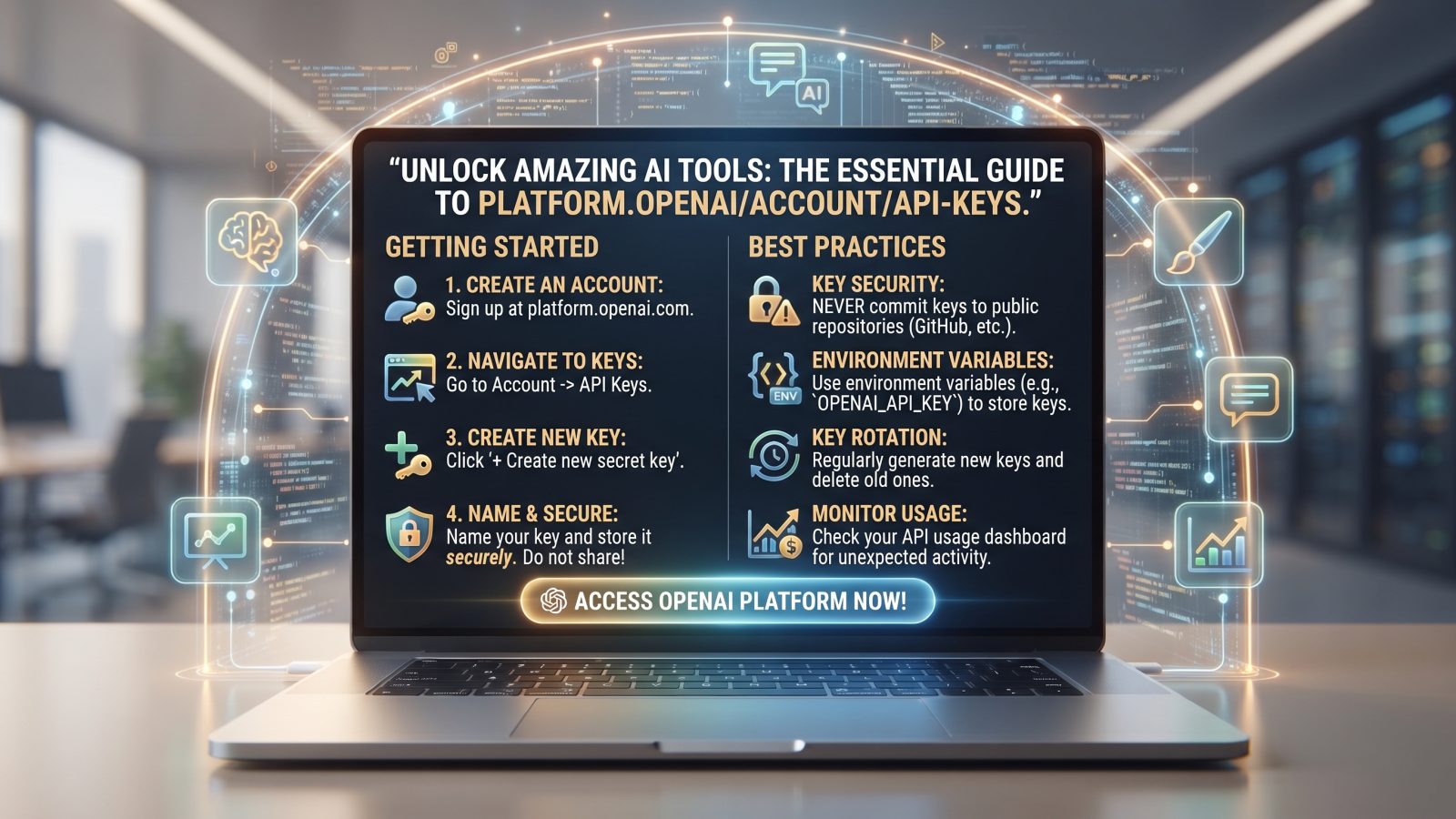
Creating your very first key on platform.openai/account/api-keys is a quick process. Follow these simple steps to get started:
First, log into your account and open the platform.openai/account/api-keys page. Look for the button that says “Create new secret key” and click it. A small box will appear on your screen.
Second, give your key a descriptive name. This step is optional, but we highly recommend it. If you plan to use this key for your email automation, name it “Email Automation Key.” If you plan to use it for a chatbot, name it “Web Chatbot.” This makes it much easier to manage your keys as your business grows.
Third, click the create button. A long string of random letters and numbers will appear. This is your secret API key. You must copy this key immediately. We suggest pasting it into a secure password manager.
Note this warning: once you close this pop-up box on platform.openai/account/api-keys, you will never see the key again. OpenAI hides the key for your safety. If you lose it, you cannot recover it. You will have to delete it and create a new one.
The Importance of Naming Your Keys
When you generate keys on platform.openai/account/api-keys, you have the option to name them. Never skip this step. If you run a small business, you will soon have several tools using AI. You might have one for marketing, one for customer service, and one for testing.
If you do not name them, you will see a list of blank keys on your platform.openai/account/api-keys page. You will not know which key connects to which tool. This makes it impossible to troubleshoot issues. Always use clear, unique names for every key you generate.
Keeping Your Keys Safe from Bad Actors
Security must be your top priority when dealing with API keys. Think of your key as a blank check signed by your business. If a hacker gets hold of your key from platform.openai/account/api-keys, they can use it to run expensive tasks. You will be responsible for the bill.
There are several easy ways to protect yourself. First, never post your keys in public places. This includes public repositories and websites like GitHub or online resources such as Wikipedia. Hackers use automated bots to scan these sites for exposed keys every single second.
Second, use environment variables. This is a technical term for a hidden file on your web server. Instead of pasting your key directly into your website’s code, you store it in this hidden file. Your code reads the key from there, keeping it safe from the public.
Third, audit your keys regularly. Check your platform.openai/account/api-keys page at least once a month. Look for any keys that you do not recognize or no longer use. If you find any, delete them right away.
What to Do in a Security Emergency
If you suspect someone has stolen your key, you must act fast. Do not wait to see if your credit card gets charged. Open your web browser and navigate directly to platform.openai/account/api-keys.
Find the key that you believe was compromised. Next to the key, you will see a trash can icon. Click this icon to delete the key instantly. Once deleted, that key is dead. Anyone trying to use it will receive an error message.
After you delete the bad key on platform.openai/account/api-keys, create a new one. Update your business software with the fresh key. This simple action can save you thousands of dollars in a matter of minutes.
Managing Your AI Budget and Limits
You might worry that using AI will lead to giant, unexpected bills. Luckily, OpenAI has strong budget controls. When you set up your keys on platform.openai/account/api-keys, you should also set up your billing limits.
OpenAI uses a prepaid billing system. This means you add a set amount of money to your balance first. Your keys will only work as long as you have active credits. Once your credit runs out, your keys stop working. This system prevents any shocking surprise bills at the end of the month.
You can also set custom limits within your account. A soft limit will send you an email alert when your spending reaches a certain level. A hard limit will stop all API requests the moment you hit your budget ceiling. These features give you total peace of mind while exploring new AI tools.
Understanding Rate Limits and Tokens
When you start using your keys from platform.openai/account/api-keys, you will quickly hear about rate limits and tokens. These terms sound complex, but they are simple to understand. Let us break them down so you can manage your apps better.
A token is the basic unit of data for the AI. It is like a building block. One token is about four letters of a word. When the AI reads your prompt or writes a reply, it counts the tokens. You are billed based on the number of tokens used.
Rate limits are rules that restrict how fast you can use the API. OpenAI sets these limits to make sure their servers do not crash. There are two types of rate limits. The first is Requests Per Minute (RPM). This is how many times your website can talk to OpenAI in sixty seconds. The second is Tokens Per Minute (TPM). This is the total number of word blocks you can send and receive in sixty seconds. Monitoring these limits helps you avoid service stops as your traffic grows.
Comparing OpenAI Models and Pricing
To use your platform.openai/account/api-keys page effectively, you need to choose the right AI model. OpenAI offers several models. Each model has a different balance of speed, smarts, and cost.
The table below compares key statistics and pricing for the most common models you might use with your keys. Prices are measured in tokens. A token is roughly four characters of English text.
| Model Name | Context Window | Input Cost (per 1M tokens) | Output Cost (per 1M tokens) |
|---|---|---|---|
| GPT-4o | 128,000 tokens | $5.00 | $15.00 |
| GPT-4 Turbo | 128,000 tokens | $10.00 | $30.00 |
| GPT-3.5 Turbo | 16,385 tokens | $0.50 | $1.50 |
When you create keys on the platform.openai/account/api-keys dashboard, you do not need to lock a key to a specific model. Your software code tells OpenAI which model to use. This means you can use the same key to test different models and find the best fit for your budget.
Real-World Business Use Cases for API Keys
How can your small business actually use these keys? Once you set up your platform.openai/account/api-keys page, the possibilities are endless. Many small business owners search Google for tips on using AI. Here are a few real-world examples of how our clients use AI to grow:
- Automated Customer Support: You can connect your API key to a custom chat widget on your website. This widget can answer customer questions 24/7, even when your team is asleep.
- Smart Email Sorting: You can build a tool that reads incoming customer emails. The AI can sort them into categories like billing, support, or sales leads and assign them to the right person.
- Content Creation: Your marketing team can use a custom tool to generate blog drafts, social media posts, and product descriptions in seconds. This saves hours of writing time.
- Data Analysis: You can feed sales spreadsheets to the AI. It can spot trends and suggest areas where you can cut costs or increase revenue.
All of these powerful workflows start with a single secret key generated on the platform.openai/account/api-keys dashboard.
Why You Should Avoid Using One Key for Everything
A common mistake made by busy business owners is using one API key for all their software. It seems easy and fast. However, it is a dangerous practice. If you use one key for your website, your email tool, and your internal database, you create a major security risk.
If your website gets hacked, the hacker gets your key. Because you used that key everywhere, they now have access to your other systems too. You will have to shut down all your systems at once to fix the leak. This causes massive disruption to your business operations.
Instead, visit platform.openai/account/api-keys and make separate keys for every tool. Name them clearly. If your website chatbot key gets leaked, you only have to delete that specific key. Your email tools and database tools will keep running without any interruption.
Also, make sure you clean up your platform.openai/account/api-keys list by deleting keys you no longer use. This simple habit keeps your digital workspace tidy and safe.
How Nextgen Can Help You Build Smart AI Workflows
Understanding how to use platform.openai/account/api-keys is a great first step. However, building the software that connects to these keys is a different challenge. Most small business owners do not have the time to learn coding or manage complex APIs.
That is where Nextgen comes in. At Nextgen, we are experts at helping small businesses integrate AI into their daily work. We handle all the heavy lifting for you. We can help you set up your platform.openai/account/api-keys securely and set up proper budget limits.
Then, we build the custom software you need. Whether you want a smart website chatbot, an automated email responder, or a custom internal dashboard, our team of experts can build it. We make sure your AI tools are safe, fast, and cost-effective. Explore our AI integration services or contact the Nextgen team today to learn how we can help you scale your business with AI.
Frequently Asked Questions
What is the difference between ChatGPT Plus and an API key?
ChatGPT Plus is a monthly subscription. It lets a single user talk to AI on a web browser. An API key from platform.openai/account/api-keys is for connecting OpenAI’s brain to your own custom software. The two services use separate billing systems and do not share credits.
Do OpenAI API keys expire?
No, your keys generated on platform.openai/account/api-keys do not have an expiration date. They will remain active forever unless you delete them yourself. However, if your OpenAI account runs out of prepaid credits, your keys will temporarily stop working until you add more funds.
Is there a limit to how many keys I can create?
Yes, OpenAI sets a generous limit on how many keys you can create. For most small businesses, this limit is more than enough. If you ever need more keys, you can clean up your dashboard on platform.openai/account/api-keys by deleting old, unused keys to free up space.
Can I set spending limits on individual keys?
Currently, you cannot set individual spending limits for each key on platform.openai/account/api-keys. Spending limits are set at the account level. To control costs for different projects, you must monitor your usage page or set up separate sub-accounts if you need strict separation.
How do I know if my API key is working?
You can check the “Last Used” column on the platform.openai/account/api-keys page. This column shows the exact date and time your key was last used. If this column is blank or shows an old date, your software is not connecting properly, and you may need to check your setup.
How do I safely share an API key with my developer?
You should never send keys via text, chat, or email. The safest way is to add your developer to your OpenAI organization. They can log in with their own account and generate their own keys on platform.openai/account/api-keys. This keeps your main secret keys private and secure.
Last updated: August 11, 2026
[Author Bio: Add author name, credentials, and relevant expertise here before publishing.]
Have questions or ready to get started? Get in touch with our team.