Why Your Business Needs the Latest Operating System
Table of Contents
Are you looking to boost your team’s daily productivity? Upgrading your office computers is a great way to start. In this guide, we will show you how to download windows 11 safely and quickly.
Modern software helps your business stay safe from hackers. According to tech industry data, older operating systems face far more security threats. Many business owners ask how to upgrade their operating systems without losing their files. We have designed this guide to answer all of your questions.
Microsoft will end support for older systems soon. Upgrading now ensures you keep getting vital security patches. Let us look at how this new system can help your business grow. Running old operating systems exposes your firm to cyber threats, so taking action early is a smart decision. If you need professional assistance, you can also explore our IT support services to guide you through the transition seamlessly.
Why Learn How to Download Windows 11 for Your Business
New tools can make your daily work much smoother. Windows 11 offers better speed, modern security, and virtual desktops. For small businesses, knowing how to transition to this modern software is the first step toward an updated workspace.
Time is money for any small business. Slow computers waste hours of employee time every single week. When you understand how to download windows 11, you save time and keep your team happy.
Security is another major reason to upgrade. This system has built-in tools to block viruses and malware. Malware is harmful software designed to steal your data or ruin your computer. By using modern hardware-based security, you protect your customers’ private records.
Furthermore, remote work is here to stay. This operating system provides excellent collaboration features. Microsoft Teams is directly integrated into the taskbar. This makes it easier for your hybrid team members to stay connected and share files instantly without lags.
Check Your PC Requirements First
Before you begin your upgrade journey, you must check your PC compatibility. This new operating system has strict hardware needs. Older computers might not run the software well. If you force the installation on unsupported devices, you may experience frequent crashes and lose access to future security updates.
You need a clean, stable PC to avoid system crashes during the upgrade. The table below shows the basic needs for your computer.
| Hardware Component | Minimum Requirement | Why It Matters |
|---|---|---|
| Processor | 1 GHz or faster with 2 or more cores | Ensures smooth multitasking |
| RAM (Memory) | 4 Gigabytes (GB) | Allows apps to run quickly |
| Storage | 64 GB or larger | Leaves room for files and updates |
| System Firmware | UEFI, Secure Boot capable | Protects the PC during startup |
| TPM | Version 2.0 | Secures your company passwords |
The most common issue is the TPM requirement. TPM stands for Trusted Platform Module. It is a small security chip on your computer’s main circuit board. It protects your passwords and sensitive business data. Most modern PCs made after 2018 have this chip already turned on.
You can find out more about market trends on Statista. Their data shows that modern security features are a top priority for businesses worldwide today. If your hardware is older, you may need to plan a budget to replace these devices soon.
Preparation Steps Before You Begin
You should back up your files before you install the new software. Even safe installations can sometimes fail. A power outage or a lost internet connection can disrupt the process and damage your active files.
Save your critical business files to an external drive. You can also use cloud storage services like Microsoft OneDrive or Google Drive. Make sure your computer connects to a reliable power source during the entire process.
- Back up all customer lists and accounting files first.
- Plug your laptop into a wall outlet to prevent it from shutting down.
- Connect to a fast, stable internet network.
- Save all active project files and close your open programs.
- Locate your software license keys for quick re-activation.
Now you are ready to start the upgrade process safely. Let us look at the three easiest methods to get your new operating system.
Step-by-Step: How to Download Windows 11 Using Windows Update (The Safest Way)
Using the built-in update tool is the safest route. This is the easiest method to get started. Microsoft checks your hardware automatically before showing the download button.
To start, open your Settings menu. Click on “Update & Security” and then choose “Windows Update.” Click the button that says “Check for updates.”
If your PC is ready, the upgrade becomes a simple, one-click task. You will see a banner offering the upgrade. Click the “Download and install” button to start. The system will download the files in the background while you continue working.
Once the download completes, your PC will ask to restart. This restart process can take up to an hour. Do not turn off your computer during this phase. After several reboots, your new system will welcome you with a fresh login screen.
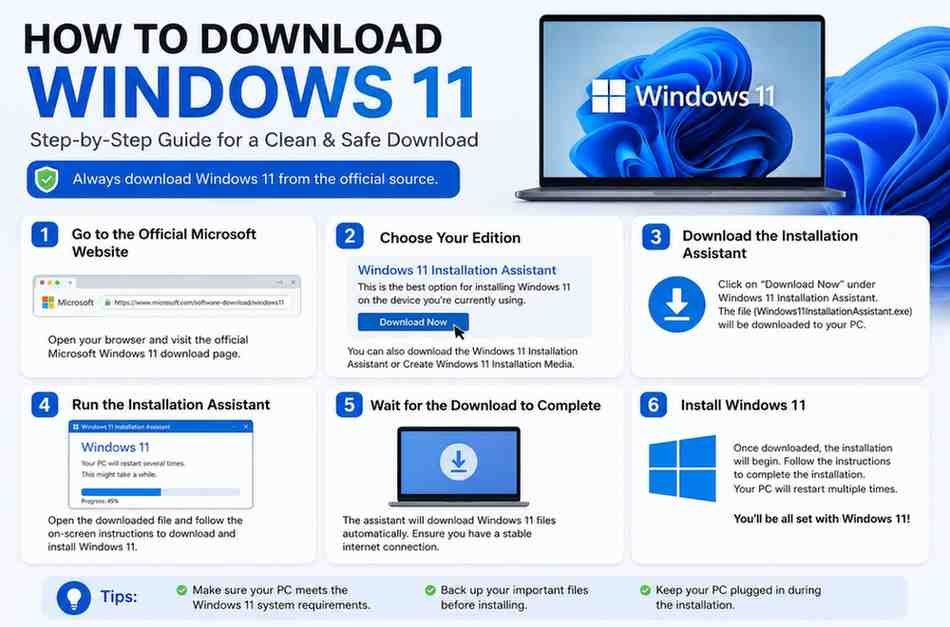
How to Download Windows 11 via the Installation Assistant
Sometimes, your PC is fully compatible, but the update does not show up yet. Microsoft rolls out updates in phases. If you do not want to wait, you can still find how to download windows 11 manually.
Visit the official Microsoft homepage to find the software download page. Look for the Windows 11 Installation Assistant. Click the “Download Now” button under this tool.
This software guides you through the setup process step by step. Open the downloaded file to run the assistant. Click “Accept and Install” to agree to the licensing terms.
If you choose this path for your installation, keep your internet connected. The assistant will download the files directly. It will check your device and prepare your system automatically. When it finishes, save your work and restart your machine.
How to Download Windows 11 Using the Media Creation Tool
Are you managing several office computers? If so, you might want a tool that lets you upgrade multiple PCs. This is where the Media Creation Tool becomes useful.
This tool is perfect when planning how to download windows 11 for many office PCs. It lets you create a bootable USB drive. This means you save the installation files to a flash drive once, then use it on any machine.
Once you have copied the installation files onto a USB drive, you can install it anywhere. You will need a blank USB flash drive with at least 8 GB of space. Plug the drive into your computer first.
Open the tool and choose “Create installation media for another PC.” Select the option for a USB flash drive. The tool will download the operating system directly onto your flash drive.
This tool can also create an ISO file. An ISO file is a single file that contains a perfect copy of an entire CD or DVD. You can burn this file to a disc or run it virtually on your computer. This gives you ultimate flexibility when deploying software across a growing network.
Alternative Option: Downloading the ISO File Directly
For advanced IT administrators, downloading the ISO file directly from Microsoft is an excellent alternative. This method is handy when you need to deploy the operating system on virtual machines or run custom enterprise setups. If you want to know how to download windows 11 as an ISO, you can do so from the same Microsoft download page.
Scroll down to the “Download Windows 11 Disk Image (ISO)” section. Choose the multi-edition option from the dropdown menu and click “Download.” You will then select your product language and confirm. Once the file is on your storage drive, you can mount it directly in Windows or burn it to media. This approach is highly efficient for technical teams managing structured networks.
Common Issues and Fast Fixes
If you run into errors while trying to complete the process, check your TPM settings. Many users see a message saying their PC is not supported. This error is common when people try to run the software on older PCs.
Sometimes preparing your hardware requires a simple BIOS setting change. BIOS stands for Basic Input/Output System. It is the built-in software that controls your computer hardware before the main system starts. You must turn on “Intel PTT” or “AMD fTPM” inside your BIOS menu to enable the TPM chip.
Another common issue is lack of storage space. Windows 11 needs at least 64 GB of free space to install. Clean up your drive by deleting old temporary files before starting. This simple step saves you from annoying mid-installation errors.
You might also experience network disconnects during large file transfers. If your Wi-Fi is unstable, try connecting your computer to the router using an Ethernet cable. This physical connection ensures steady download speeds and prevents corrupt files.
Post-Installation Checklist for Small Businesses
Once the system restarts, you will see a fresh new desktop. Your upgrade is complete, but you still have a few tasks to do. After you finish the setup process, turn on your firewalls and anti-virus programs.
Check your system settings to ensure your security settings are active. Go to Settings, then click Privacy & Security. Protecting your data starts with setting up the operating system securely and configuring it correctly.
Next, check your peripheral devices like printers and scanners. Sometimes you need to update drivers for older office equipment to work with the new system. A driver is a small piece of software that helps your hardware talk to your operating system.
You should also train your staff on the new layout. The Start menu is now in the center of the screen. Show your employees how to find their favorite apps quickly to avoid any loss of productivity. Encouraging open communication during this transition helps reduce team frustration.
Final Thoughts
Now that you know how to download windows 11, you can upgrade your office with confidence. A fast, secure system keeps your business competitive. Do not wait until Microsoft ends support for your old system.
Share this post to help others learn how to upgrade easily. Taking action today protects your business assets for years to come.
Have questions or ready to get started? Get in touch with our team.